Skip to content

Step 1 of getting started

Opening your XM account

Your robot needs somewhere to trade. This is a demo account — play money, real prices — and it takes about five minutes. Follow the eleven screens below and you will finish holding the three details we ask for when you connect a robot.

Partner code — enter during registration

FQ7XX
  1. 1

    Register with XM

    Open the registration page, choose your country, and enter your email and a password. When you reach "Have a partner or referral code?", tap Enter here and put in the partner code.

    The partner code has to go in during registration — it cannot be added afterwards.

    Open the registration page
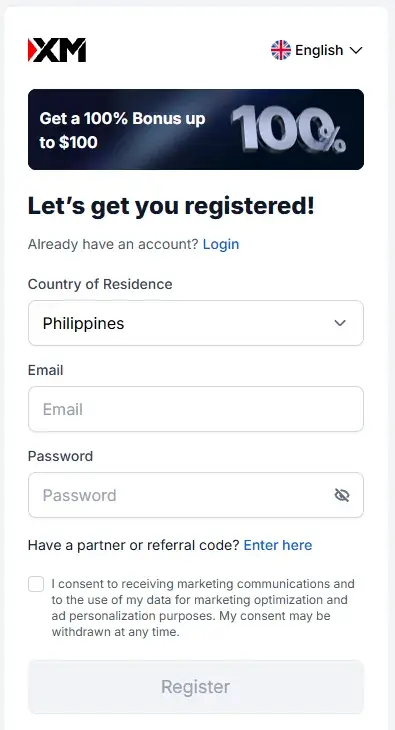
    XM registration, step 1: Register with XM
  2. 2

    Add a trading account

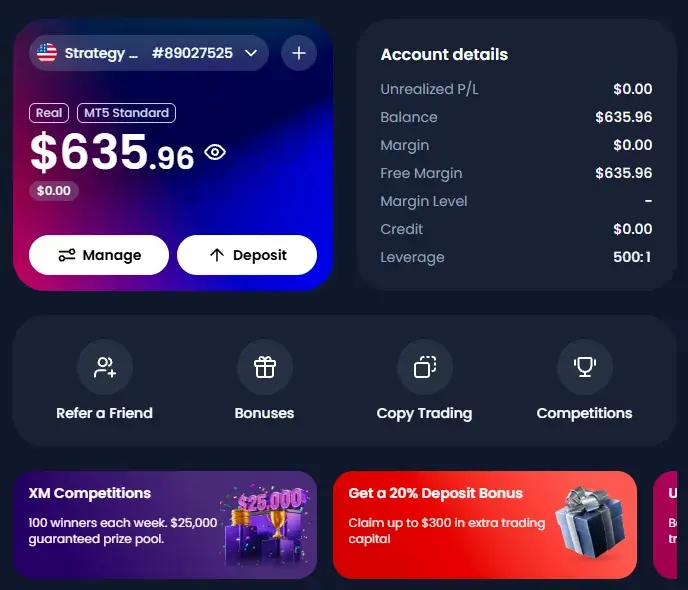
    Once you are inside your XM dashboard, click the plus sign to create a new trading account.

    XM registration, step 2: Add a trading account
  3. 3

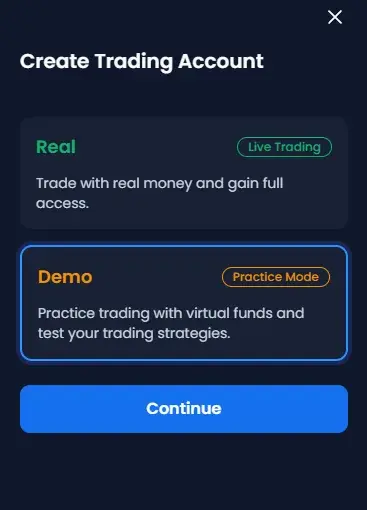
    Choose Demo

    Select a demo account. Nothing you do from here risks real money, and this is the account your first robot will run on.

    XM registration, step 3: Choose Demo
  4. 4

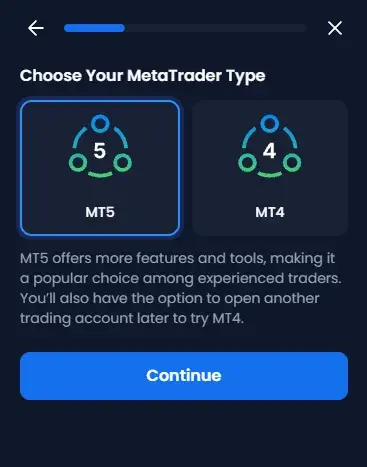
    Select MT5

    Pick MetaTrader 5. Our robots run on MT5, so an MT4 account will not connect.

    XM registration, step 4: Select MT5
  5. 5

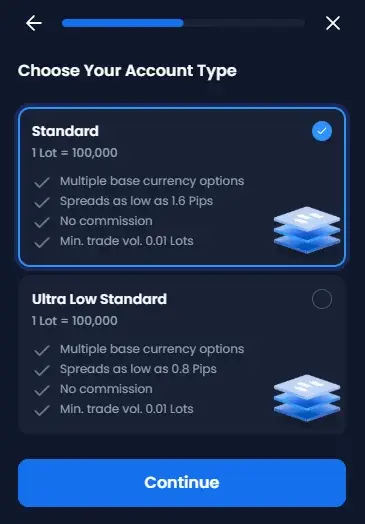
    Choose Standard

    Select the Standard account type.

    XM registration, step 5: Choose Standard
  6. 6

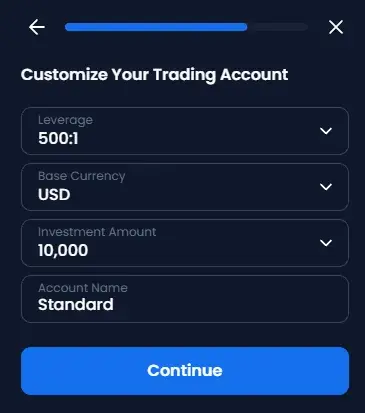
    Set leverage to 500:1

    On the Customize Your Trading Account screen, set Leverage to 500:1. Leave Base Currency as USD and the account name as Standard, then continue. You will set the actual demo balance in a moment.

    XM registration, step 6: Set leverage to 500:1
  7. 7

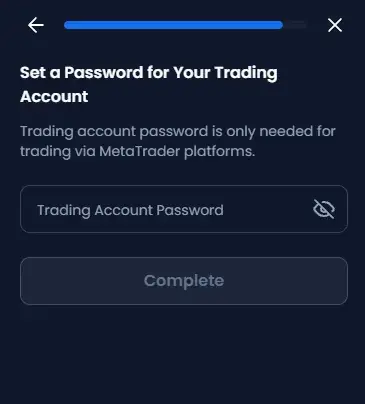
    Set your trading password

    Create the password for this trading account. This is the one you will give us later, so keep it somewhere you can find it.

    This is the trading password, not your XM website login. We never ask for the website login.

    XM registration, step 7: Set your trading password
  8. 8

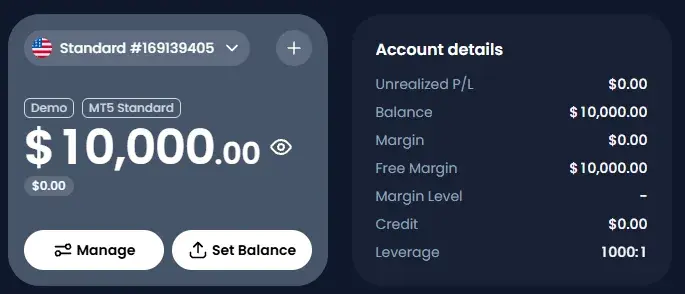
    Click Set Balance

    With the account created, open Set Balance to fund the demo.

    XM registration, step 8: Click Set Balance
  9. 9

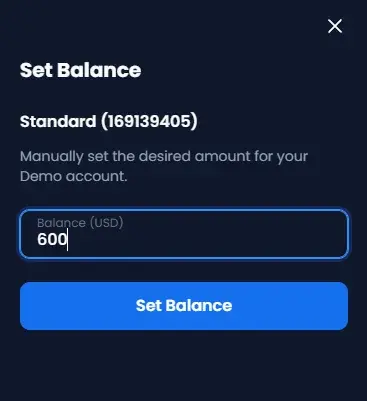
    Enter $600

    Six hundred dollars is the minimum. Use the same amount you actually intend to trade with — a demo funded with $50,000 teaches you nothing about how you will feel losing money on $600.

    XM registration, step 9: Enter $600
  10. 10

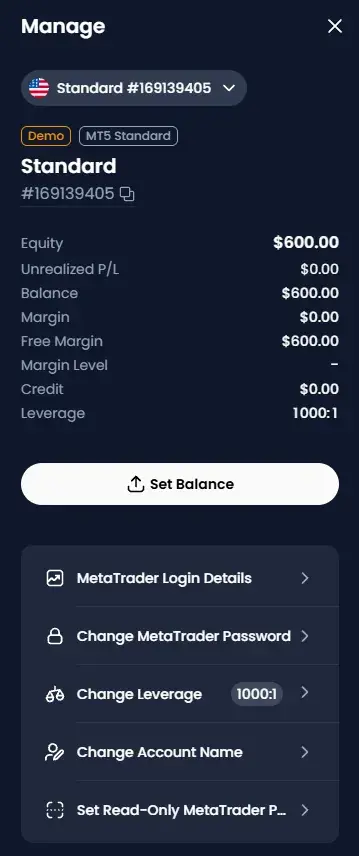
    Open Login Details

    Back on the account, click Login Details.

    XM registration, step 10: Open Login Details
  11. 11

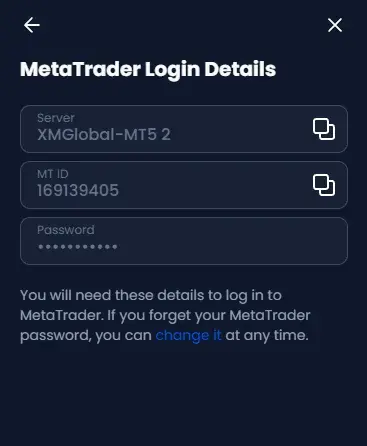
    Save what appears

    A panel shows your account number and server name. Write both down — together with the trading password from step 7, they are exactly what you enter when you connect a robot.

    Account number + server name + trading password. That is the full set.

    XM registration, step 11: Save what appears

Optional

Watch the account from your phone

Your Aurum dashboard shows your robot’s performance, and you can also watch the raw account directly in MetaTrader’s own app. Same account, same trades, straight from the broker — useful if you would rather not take anyone’s word for the numbers, including ours.

  1. 1

    Install MetaTrader 5

    Search for "MetaTrader 5" by MetaQuotes on the App Store or Google Play. It is free.

  2. 2

    Choose Login to an existing account

    Not "Open a demo account" — you already have one. Search for your broker and pick the server exactly as it appears on your account: XMGlobal-Demo3, or whichever the platform showed you.

  3. 3

    Enter your account number and trading password

    The same two you gave us. If you would rather the app could not place trades, use your investor password instead — XM provides one, and it gives read-only access.

  4. 4

    Watch it work

    Trade tab shows open positions and live profit. History shows everything closed, by day, week or month. It is the same account we monitor, so the numbers match your Aurum dashboard.

Tip: if you log in with the investor password rather than the trading password, the app can show you everything but cannot place or close a trade. That is the safer choice for day-to-day watching, and it means a lost phone cannot interfere with the robot.

You now have everything we ask for

Account number, server name and trading password. Head to your dashboard, pick a robot, and paste them in. We take it from there and have it running within one business day.

Pick your robot

Stuck on a step? Send us a message and a person will answer.